Project transactions
What are project transactions
Project transactions allow you to estimate, budget, and keep track of the financial outlook of your projects. You can view transactions by type, year, status, and more. It’s easy to edit, deactivate, and cancel transactions or create a purchase order for approved items. Create a new budget and submit transactions for approval with a few clicks straight from the dashboard. As you record transactions, the budgets you’ve created will reflect this and display your estimate, commitment, actual cost, and the remaining balance to alert you about reaching the budget limit.
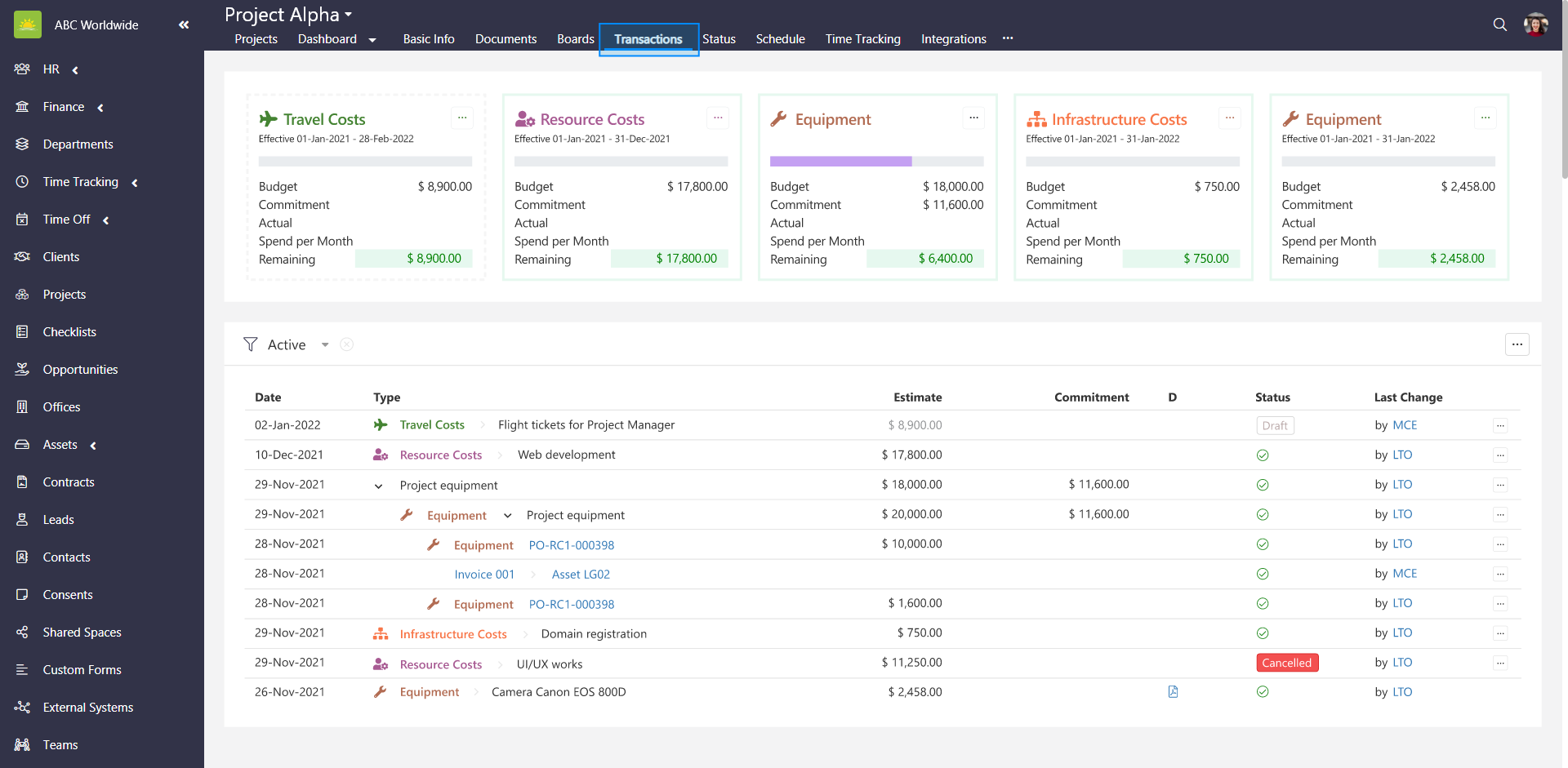
Color codes, icons, and names of the transaction types can be defined in the Organization Configuration by an administrator.
Transactions dashboard view
The top part of the screen displays an overview of the budgets. Each budget shows its name, budget amount, commitment (allocated funds for specific payments, invoices, etc.), actual (already processed payments), and remaining budget balance.
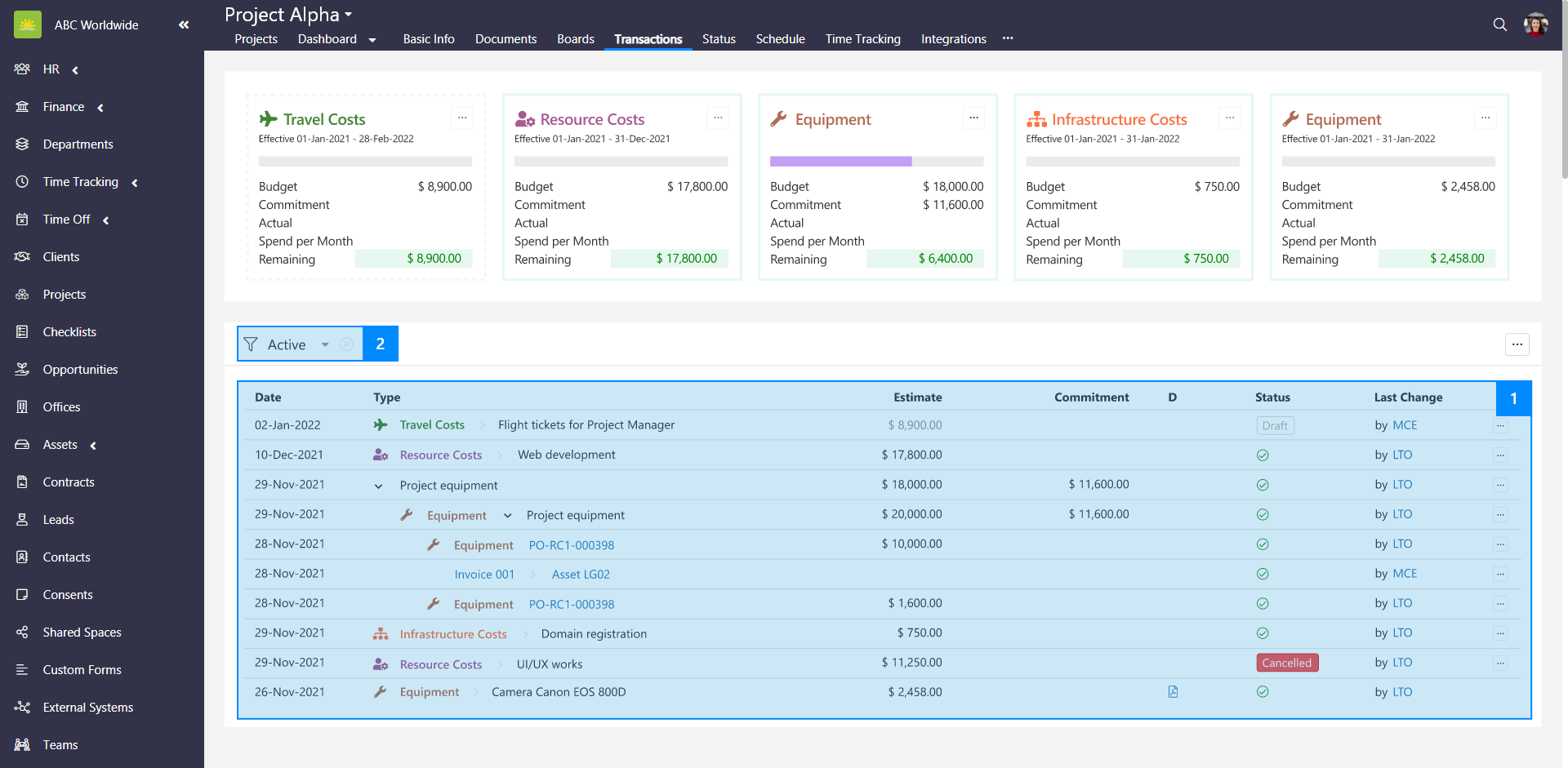
Below the filters on the left and … on the right (record estimate, record budget and submit for approval), you can view a grid of transactions organized with the following columns:
- Date – This is the date when the estimate has been recorded.
- Type – Estimates, Budgets, POs and Incoming Items are listed under this column. If approved estimates have been linked to an approved budget, they will be nested under the corresponding budget transaction. Click … next to a budget to expand its view and see all linked estimates and how they relate to the overall budget. The items are color-coded by the system according to their type.
- Budget – Shows the budget for the estimates.
- Commitment – These are amounts that are already allocated for payments and cannot be used for anything else.
- Actual – These figures reflect the actual expenditures incurred.
- D – Displays documents and a system generated icon. The icon represents transactions that have been generated by the system.
- Status – Approved transactions are shown in green, denied transactions are shown in red, and transactions awaiting are shown in brown. The draft status doesn't have a color.
- Last Change – Hover the mouse over by and initials to view the full name of who made the last change and when.
- Action icon ... – At the end of a draft estimate row, you can edit, cancel or deactivate the transaction. You can also cancel a denied transaction here.
- Action icon – Above the grid on the right allows you to record estimate, upload from Excel, submit for approval and create a purchase order.
How to search for a transaction
To search for a transaction, go to the Projects module and click the Transactions tab in a project’s page.

You can search for a transaction in 2 different ways:
- Manually – Select the relevant transaction from the list.
- By using filters – Use filters to help narrow down your search. You can search for transactions by their Status, Type, Year, and State.
Note! Vault Synapse users can view the project transactions only with relevant permissions/access rights given by the administrator.
Note! Vault Synapse is a highly customizable tool, meaning certain parts and functionalities can be additionally customized based on your business needs and preferences.
Didn’t find what you were looking for?
Contact us and we’ll build the right solution for you. Vault Synapse can be fully customized based on your business needs.
Contact us and we’ll build the right solution for you. Vault Synapse can be fully customized based on your business needs.